
How to Hide Your Squarespace Website While You're Working on It
There's a specific kind of panic that comes with sharing your website before it’s ready. Maybe you already printed business cards. Maybe a potential client googled you mid-build and landed on a half-finished homepage with placeholder text and a stock photo you never meant to keep.
The good news is that Squarespace gives you a few simple ways to keep your site hidden while you work on it. The less obvious news is that the right choice depends on one question: is your site brand new, or is it already live and bringing in clients? Those two situations call for very different approaches, and mixing them up can quietly cost you search traffic.
Here's how each option works, and when to use it.

Where Squarespace's Visibility Settings Live
Everything starts in one place. In your Squarespace dashboard, go to Settings, then Site Availability. If you'd rather skip the clicking, press the forward slash key anywhere in the editor and type "Site Availability" to jump straight there.
You'll see three options: Public, Private, and Password Protected. Public means anyone can visit and search engines can find you. The other two are your tools for working behind the scenes, and they behave very differently from the visitor's side of the screen.
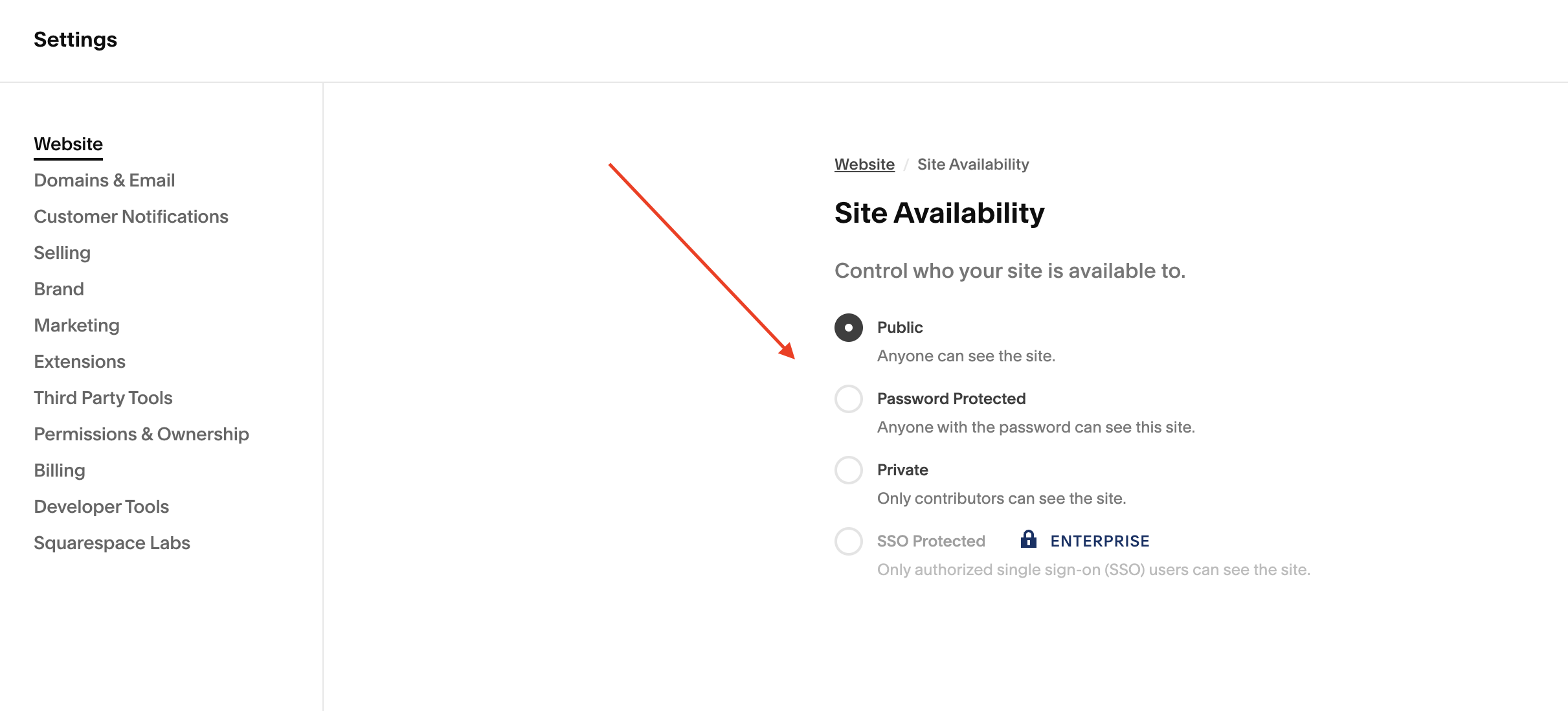
Option 1: Make Your Squarespace Site Private
A private site is visible only to you and anyone you've added as a contributor. Everyone else sees a simple message telling them the site is private, along with a login prompt meant for the site owner.
This is the best setting for the early, messy stage of a brand-new build, when layouts are half finished and nothing is ready for outside eyes. It's also useful if you're working with a designer, since they can log in as a contributor and see everything while the rest of the world sees nothing.
The downside is that a private site doesn't say much to the outside world. If someone types in your domain, they get a plain message rather than anything that looks like your brand. That's fine during the first few weeks of a build, but it's not the impression you want if your domain is already on business cards or in your Instagram bio.
Option 2: Make Your Squarespace Site Password Protected
A password protected site puts a lock screen in front of every page. Visitors can't see anything without the password, but anyone you share it with can browse the full site exactly as it will look at launch.
This is the sweet spot for the feedback stage. You can send the password to a business partner, a trusted client, or a friend who will give you honest notes, without making anything public. It's also the setting behind most Squarespace "coming soon" pages, which we'll get to next.
One important catch: if your site sells anything, checkout won't work while a site-wide password is turned on. If you're running a shop or selling digital products, plan to remove the password before you announce your launch.
New site? Hide it. Live site? Build around it.
Private and password protected settings are perfect for a first build. Once your site is ranking and booking clients, hiding it can cost you more than it protects.
How to Create a Coming Soon Page in Squarespace
Squarespace doesn't have a separate "coming soon" setting. Instead, there are two ways to build one: customize the lock screen that appears on a password protected site, or design a regular page that stands in as your homepage until launch. The first keeps everything locked down. The second gives you far more creative freedom.
Method 1: Customize the Lock Screen
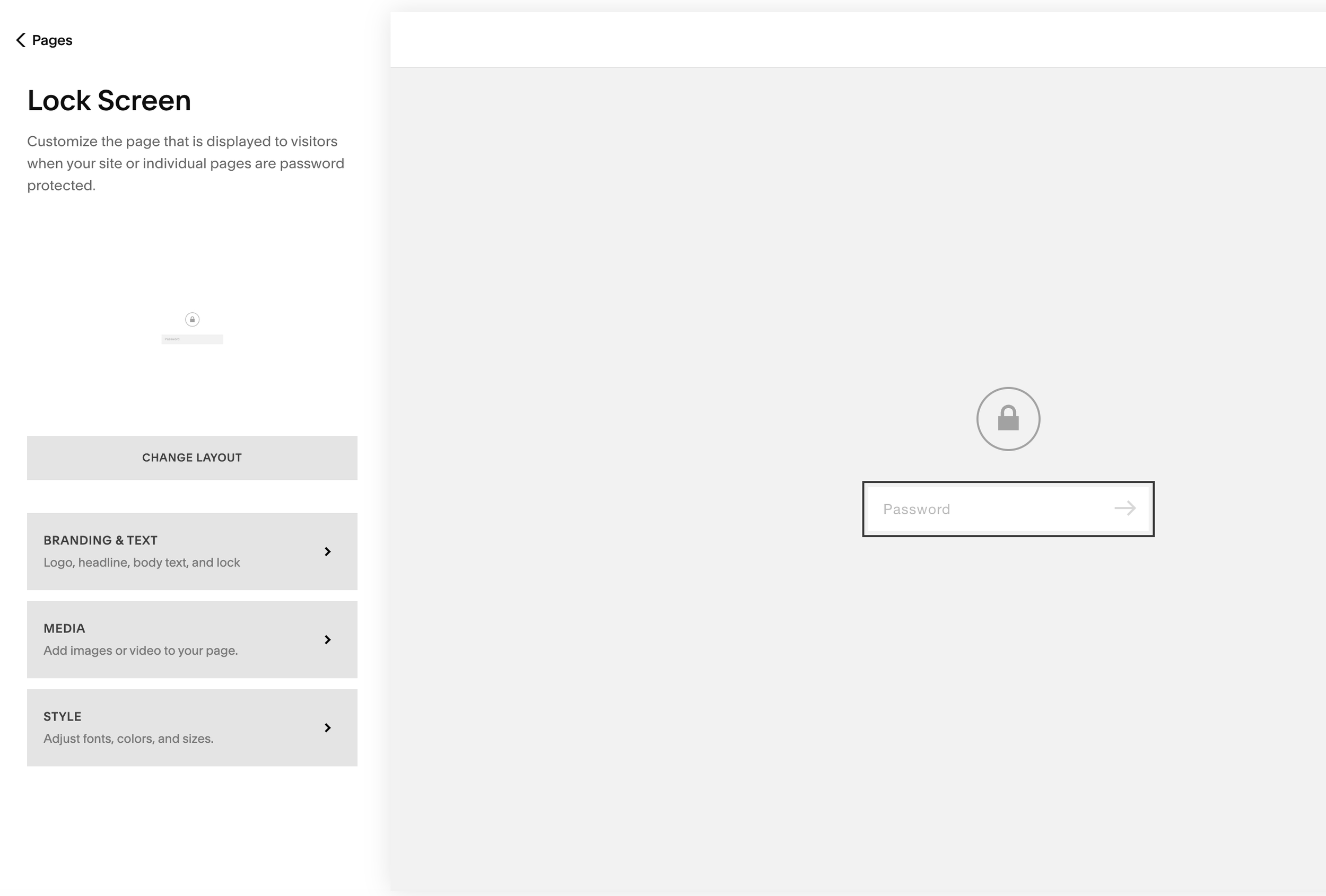
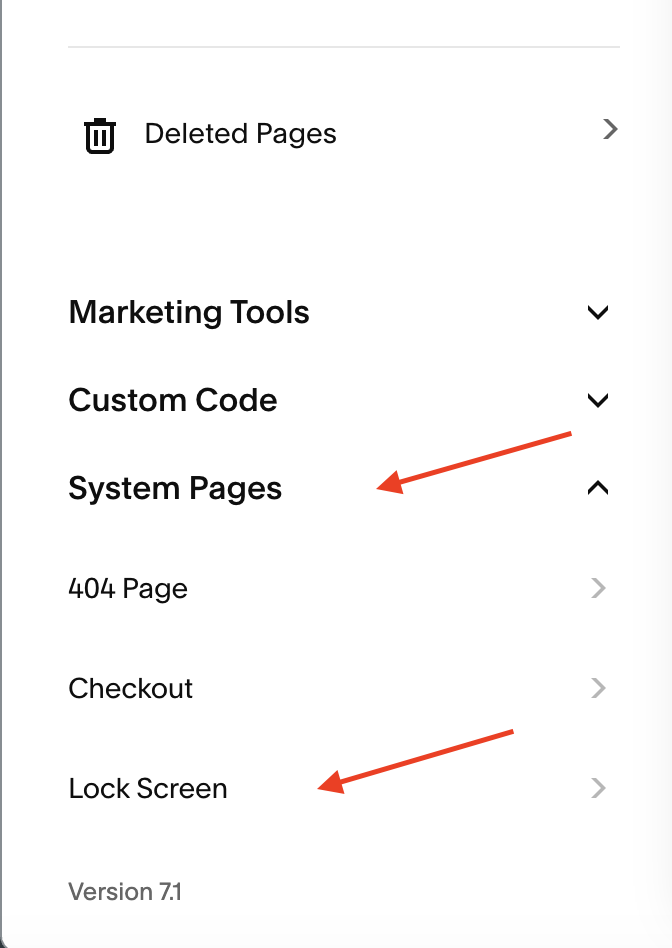
Start by setting your site to password protected, then open the Pages panel, scroll down to System Pages, and click Lock Screen. From there, you can choose a layout, add your logo, write a headline and short message, upload a background image or video, and adjust fonts and colors so it matches your brand. A simple "New website coming soon" with your logo, brand colors, and a way to reach you goes a long way.
A few things to keep in mind. The lock screen is designed separately from the rest of your site, so changes here won't affect your other pages. It also doesn't use blocks or sections the way regular pages do, so you're working within the layout options Squarespace provides. And there's only one lock screen design per site, so whatever you create here is what every locked page will show.
Method 2: Build a Custom Coming Soon Page
If you want more than a logo and a headline, you can build your coming soon page like any other page on your site, hide the navigation and footer, and set it as your homepage. Visitors who land on your domain see only that page, with no menu leading them into the rest of your site, and you have full control over the content and design.
Start by creating a new page and adding your content. It can be as simple as a short "our new website is coming soon" message, or you can take it a step further with a newsletter opt-in or an inquiry form. That's what I recommend, because it means you're building your email list or booking inquiries before your site even launches, instead of sending interested people away with nothing to do!
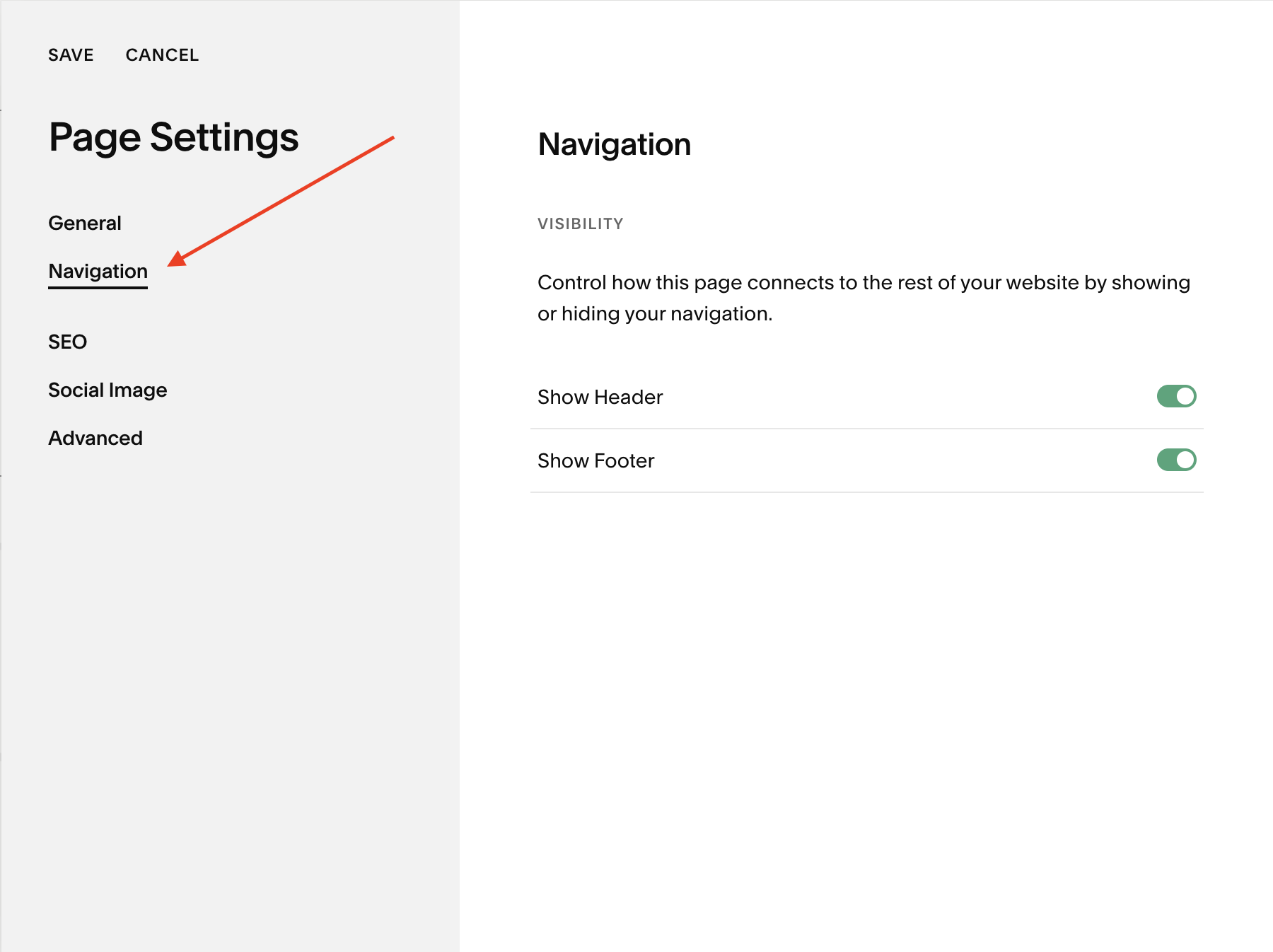
Next, hide the header and footer on that page. Open the page's settings and turn off the header and footer, so visitors only see your coming soon content with no menu leading anywhere else.
When you're ready to put it live, open the Pages panel, hover over your coming soon page, click the gear icon, and choose Set as Homepage. Anyone who types in your domain now lands on your coming soon page. On launch day, set your real homepage back as the homepage and move the coming soon page to the Not Linked section, or delete it entirely.
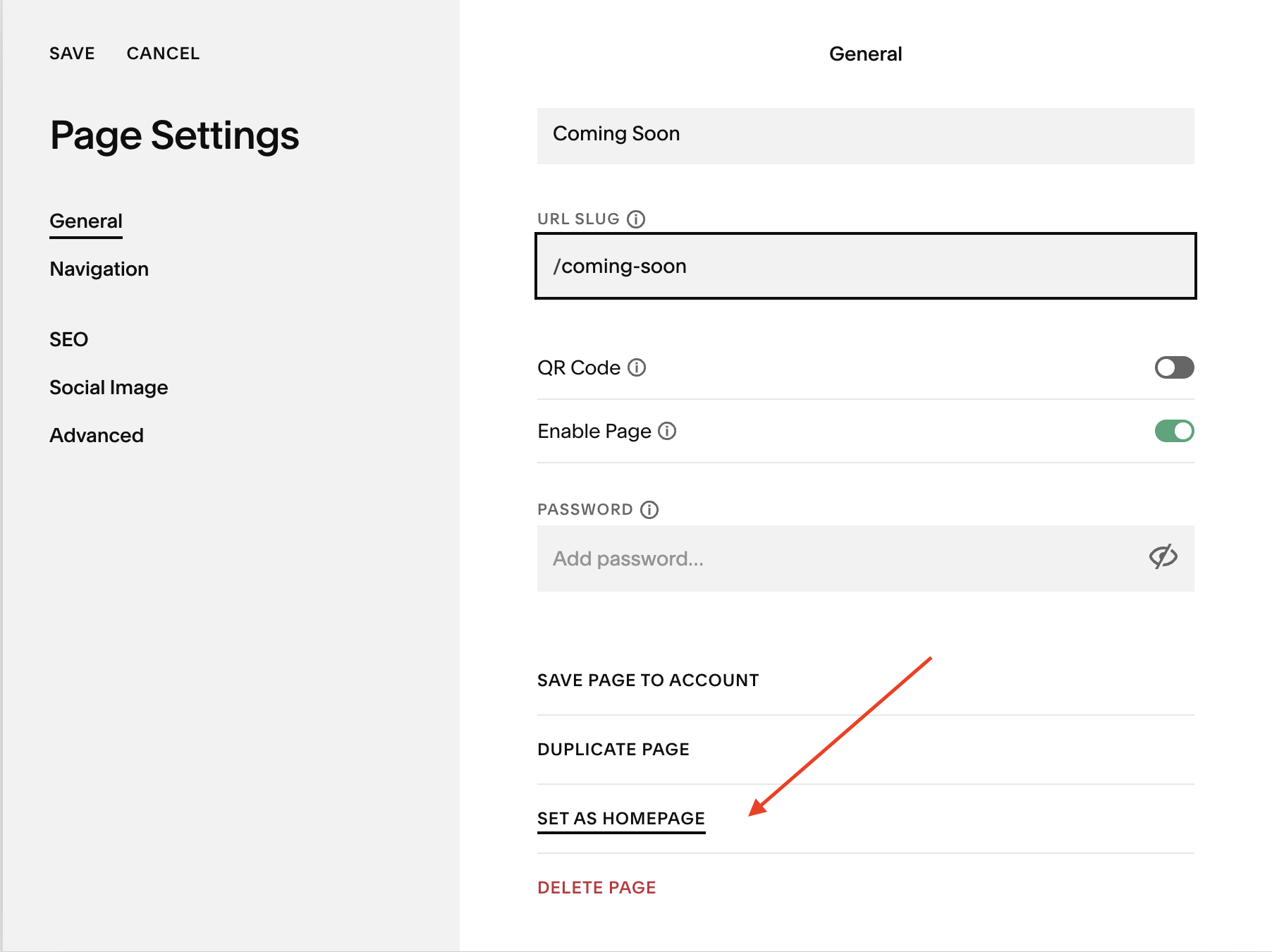
Once you delete or move the coming soon page to not linked you’ll also want to create a url redirect for that page to let Google know you’ve changed the page.
The one catch with this method: the rest of your site is still public. Your other pages can still be found on Google or by anyone who types in their exact URL. If you need your in-progress pages fully hidden, use the private or password protected settings instead, or combine this method with page passwords on anything that isn't ready.
Whichever method you choose, if you're still settling on your visual direction, our guide to powerful brand colors can help you choose a palette that makes even a simple coming soon page feel intentional.
How to Password Protect a Single Squarespace Page
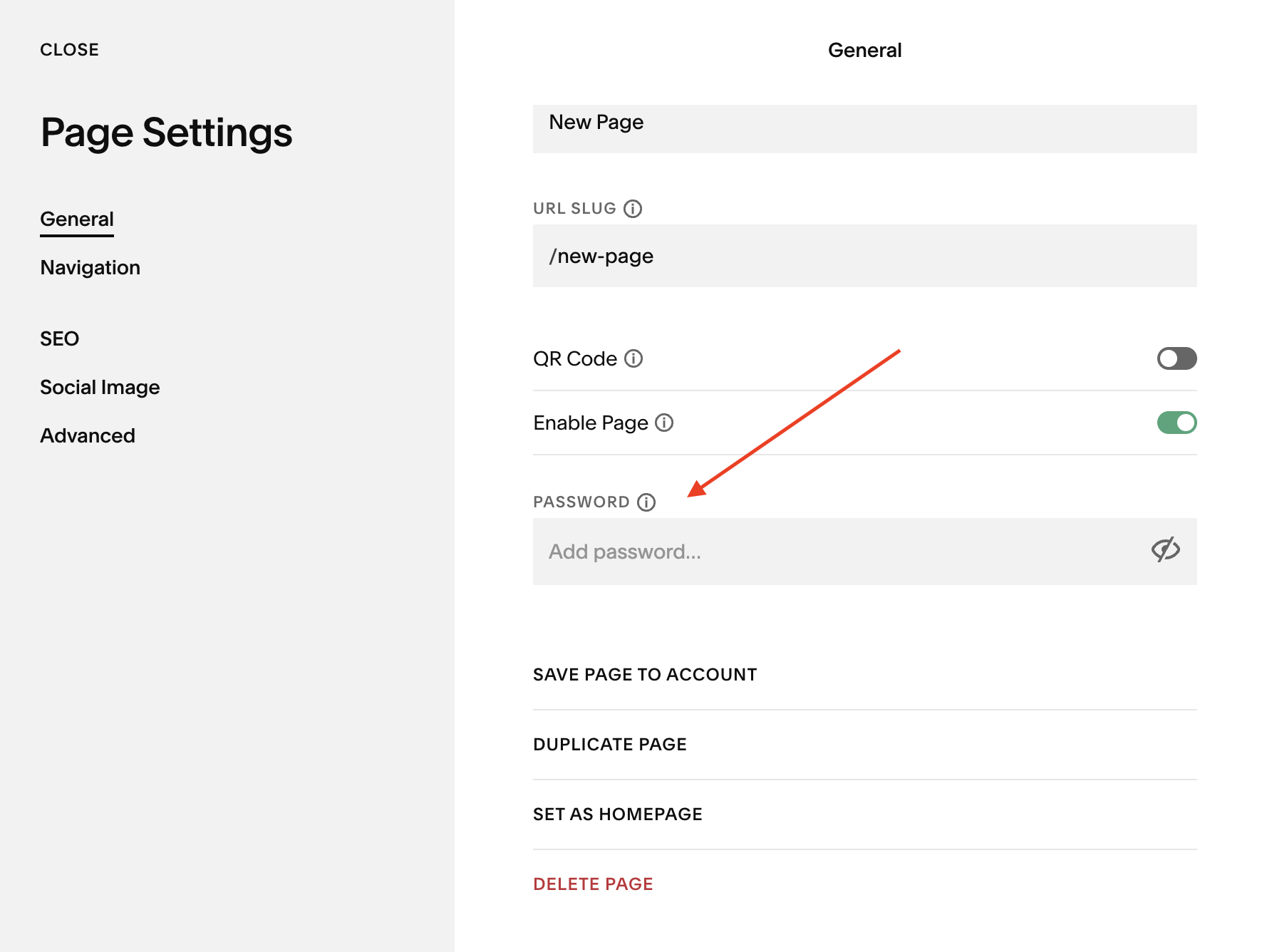
Sometimes you don't need to hide everything, just one page that isn't ready yet. Squarespace lets you add a password to individual pages without locking the rest of your site.
For pages you're still building, the Not Linked section of your Pages panel is just as useful. Pages placed there are still published, but they don't appear in your navigation, so visitors won't stumble onto them from your menu. Pair Not Linked with a page password, and you have a private workspace inside an otherwise public site. This is exactly the approach that matters most for the next scenario.
Redesigning an Existing Live Site Without Taking It Down
This is where most business owners make an expensive mistake. When it's time for a redesign, the instinct is to password protect the whole site until the new version is ready. But a password protected or private site is hidden from search engines too. If your site has been ranking and bringing in inquiries, locking it for a few weeks means pausing the traffic and leads you've spent years building.
Instead, keep your current site public and build the new version around it. For page-by-page updates, duplicate the page you're redesigning, move the copy to Not Linked, add a page password, and work on it there. When it's ready, swap it into place and keep the original URL so your search rankings carry over. If any page addresses do change, add a 301 redirect in URL Mappings so old links and search results point to the new page instead of a 404.
For bigger overhauls with a new structure, new pages, and a new look, it often makes sense to build the new site separately and move your domain over on launch day. That approach takes more planning, which is why it's worth mapping your pages and redirects before you start. If you're weighing whether your site needs that level of change, our post on the real benefits of a website redesign walks through what a redesign can do beyond the visuals, and pairing it with a brand refresh means both launch together instead of one lagging behind.
When to Make Your Site Public
It's tempting to keep a new site hidden until every detail is perfect, but waiting too long has its own cost. Your site can't start building search visibility until it's public, and Google takes time to find and index new pages.
A good rule of thumb: launch when your core pages are complete and working. That means your homepage, about page, services, and contact page are finished, your forms and booking links actually work, your site looks right on mobile, and you've checked every button and link. Blog posts, a portfolio, and extra resources can come later. If you want a second set of eyes before launch, a website audit gives you a clear read on what's working and what needs attention before you go live.
Frequently Asked Questions
-
No. Password protected and private sites are kept out of search results, which is helpful during a first build but is also why hiding a live site during a redesign can hurt your traffic.
-
A private site can only be viewed by you and your contributors, and everyone else sees a private site message. A password protected site shows a lock screen, and anyone with the password can browse the full site.
-
Trial sites aren't public, so you can build freely during your trial. Once you subscribe, check your Site Availability setting so your site is set the way you want before you share your domain anywhere.
-
Yes. Go to Pages, then System Pages, then Lock Screen to change the layout, add your logo and a message, upload a background image or video, and adjust fonts and colors.
-
Go to Settings, then Site Availability, and switch to Public. Your full site becomes visible right away.

Ready to Build a Site You're Proud to Share?
Hiding your site is a great short-term fix, but the goal is a website you're excited to send people to. If you'd rather skip the guesswork, we design custom Squarespace sites for service-based businesses and handle the launch details, from coming soon pages to redirects, so nothing gets lost along the way.
